We are offering the possibility of adding Two Factor Authentication for increased account security. When Two Factor Authentication is active, a one time code, which is provided via e-mail or an authenticator, needs to be provided in addition to the account name and password on log in.
Setting up Two Factor Authentication
In order to set up Two Factor Authentication on an account, the accounts e-mail address needs to have been successfully verified. Once that is the case, the menu entry "Two Factor Authentication Settings" within the "Account" menu of the Account Management can be used to set up the Two Factor authentication.
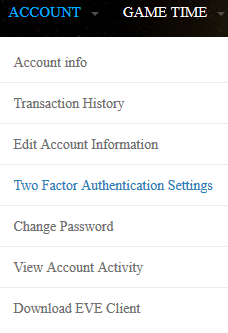
Follow the instructions on the page in order to set up Two Factor Authentication. Once the authentication via E-Mail has been set up successfully, the use of an authenticator can be set up for the account as well. Once the authenticator has been set up, the code will be provided by the authenticator app and no longer through e-mail, unless explicitly requested.
Log in with Two Factor Authentication
Two Factor authentication will add an additional step to the log in process, where the code that has been sent to the e-mail of the account or shown in the authenticator needs to be entered.
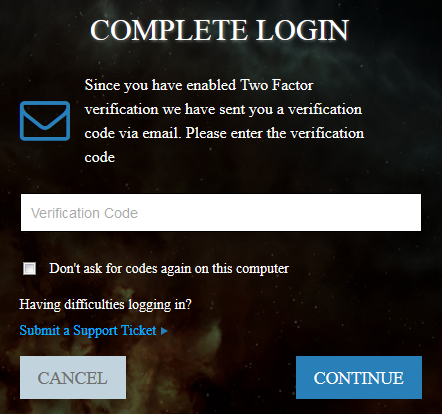
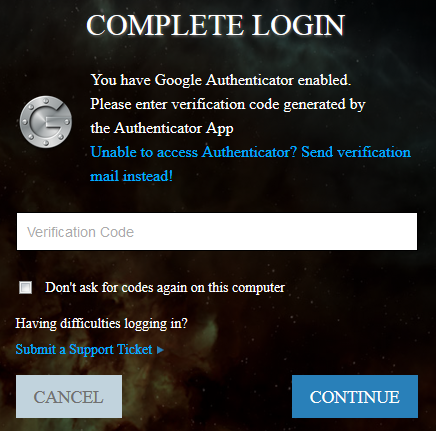
It is possible to bypass the Authenticator by selecting the check box “Don’t ask for codes again on this computer” and you will not be required to use the Authenticator upon each log in. Checking this box is saved in browser cookies, depending on what you have your browser settings on will determine if you are prompted to use the authenticator code upon each log in.
Removing Two Factor Authentication
If Two Factor Authentication through e-mail or authenticator is no longer required for an account, it can be removed by opening the "Two Factor Authentication Settings" of the Account Management again and clicking the "Disable" button.